This page contains information on how to resolve some of the most
commonly reported problems with Internet Explorer. Some IE8-specific
issues can be found here.Problem: Crashes or hangs
If IE crashes, the most likely problem is that there's a buggy
add-on (Toolbar or Browser Helper Object). In order to verify and
isolate the buggy add-on, follow these steps:
- Start IE in No Add-ons mode, either by right-clicking the Desktop
icon, or clicking START | RUN and typing:
iexplore.exe -extoff
- Determine if IE fails.
- If not, use Tools | Manage Add-ons to disable all browser extensions
and toolbars.
- Restart IE and reenable browser extensions one-by-one.
- Once you've found a broken extension, contact the manufacturer and
ask for an update.
(See also:
http://blogs.msdn.com/ie/archive/2006/07/25/678113.aspx and
http://support.microsoft.com/?id=928426)
If IE only crashes on certain pages, it may be that you have an outdated
version of Adobe Flash. Ensure you have the latest version here:
http://get.adobe.com/flashplayer/
If IE still crashes often, even when browser add-ons are disabled:
- Please ensure that you are running the very latest version of your
anti-virus, anti-malware, and/or firewall programs.
- Please ensure that the drivers for your graphics card are up to
date.
- If you have Google Desktop
installed, please ensure that you update to the latest version of Google
Desktop.
- If you have 7-Zip or other Windows Explorer extensions installed,
please ensure that you update to the latest versions.
Problem: IE9 Crashes on startup
If the add-on tips in the previous section
didn't help you, there's one other thing to check for IE9.
IE9 relies on hardware accelerated
graphics for much faster rendering. While this is great for performance,
if your graphics drivers are buggy, IE9 might crash.You should ensure that
you have the latest drivers for your graphics card, and if that still
doesn't help, try starting the Internet Options from the
system control panel. On the Advanced Tab, tick the "Use
Software Rendering instead of GPU rendering" option at the top.
Then retry starting IE.
Problem: IE is slow to start and/or open new
tabs
Please see
this article:
Unshackling IE8 Performance.
Problem: Cannot connect to Internet using IE
after updates installed
If you see the "Page Cannot be Displayed" error after
installing Internet Explorer updates from Windows Updates, it's
possible that you have a 3rd party firewall installed that is
blocking access because the IE files have been updated.
Please see
http://support.microsoft.com/kb/942818/en-us for more
information.
Problem: IE always starts in "No Add-ons" mode
The problem is that you're launching Internet Explorer using
a shortcut icon that has the "-extoff" command line parameter.
That parameter causes IE to start without add-ons. Thus,
every time you use that shortcut icon, IE will start in No
Add-ons Mode.
- How do you normally start Internet Explorer? Right-click
whatever icon you're using to start IE, choose "Properties"
and remove the -extoff part of the shortcut.
- If you click the green START button, click Run, type
iexplore.exe in the RUN box, then hit the ENTER
key, IE will start with Addons enabled.
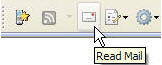
You can customize the toolbar to add or remove icons,
including the mail icon
- Right-click the Star icon in the IE window
- Choose Customize Command Bar
- Choose Add or Remove commands
- Click on the Read Mail
item in the Available toolbar
buttons list
- Click the Add button to
move the button to the Current
toolbar buttons list
- Click the Close button
If the button still isn't visible, it may be pushed off the
side of the screen. To fix this:
- Right-click the Star icon in the IE window
- Uncheck Lock the Toolbars
- Drag the dotted splitter in the command bar to the left
until all of the buttons are visible
Problem: Outlook Express will not spell
check in English (only French)
Sorry, this bug is caused by an incompatibility between
Outlook Express and recent versions of Microsoft Office.
Learn more here:
http://support.microsoft.com/kb/932974
Your best bet, however, is to upgrade to the free new
Windows Live Mail client which has replaced Outlook
Express. Please see
http://download.live.com/wlmail to download.
Problem: IE opens small windows
IE opens new windows at the size of the last closed window.
If you find that IE is opening small windows, do this:
- Close all IE windows.
- Open one new IE window.
- Adjust that window to the size you prefer. Do this by dragging the
window borders. Do not use the maximize button:

- Close the IE window.
- New IE windows will open at the size you chose.
Problem: Website blocks IE7 (e.g. it
"requires" IE6)
Run into a website that requires IE6? Spoof the site by
tweaking your user-agent.
Problem: ClearType Text appears fuzzy
IE7 turns on a text-smoothing technology called "ClearType" by default.
ClearType is scientifically proven to make text easier to read, particularly on
LCD flat panel monitors.
If ClearType looks fuzzy on your monitor, you might want to try the
ClearType tuning wizard, which can help you adjust the display of ClearType.
If you still don't like the appearance of ClearType, you can turn it off by
unchecking the checkbox: Tools | Internet Options | Advanced | Multimedia | Always use ClearType
for HTML.
Problem: IE Startup takes a long time (>3 seconds)
1. IE may start very slowly if you have a huge number of sites listed in your
Restricted or Trusted sites zone. Some tools, like "SpyBot Search
& Destroy" will place thousands of sites in these zones if you use their
"immunize" feature.
2. Follow the "Crashing on startup" steps above to see if starting in No
Add-ons mode starts much faster
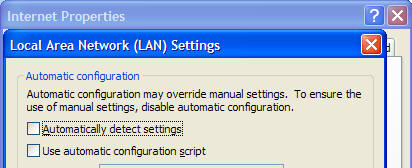
3. If you're not using a proxy, uncheck IE's "Automatically detect
settings" option on the Tools | Internet Options | Connections | LAN
Settings dialog.
Problem: Slow Page rendering
1. Increase the connection limit. This
tweak allows IE to make up to 16 connections per server.
2. Ensure that both "HTTP1.1" checkboxes in Tools | Internet Options |
Advanced are checked.
Problem: IE7 Setup fails to install Internet
Explorer
See
http://support.microsoft.com/kb/917925
Problem: My address bar won't turn green?
IE7 includes a cool new feature that turns the address bar green when a
secure site presents an
Extended Validation certificate:
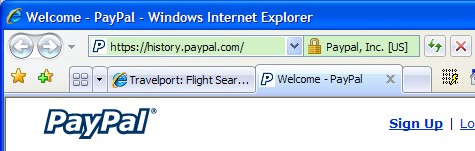
If you're having trouble with this feature, on a site you know has an EV
certificate:
-
Ensure that you either have the Phishing Filter set to
"Automatic" mode or Tools > Internet Options > Advanced >
Security > Check for Server Certificate revocation checked.
-
If that doesn't work, install this:
Windows Root Certificate Update
and restart.
Problem: After installing, IE7 starts then
vanishes
It's possible that one of IE's DLLs isn't installed correctly
- Click START | RUN and type
cmd
- In the command prompt, type
cd\
- In the command prompt, type
cd Program Files
- In the command prompt, type
cd Internet Explorer
- In the command prompt, type
regsvr32 IEPROXY.DLL
(Reference:
http://support.microsoft.com/?id=928427)
Problem: Error message about PSAPI.DLL
If you install IE7 and the following error message
begins to show:
The procedure entry point GetProcessImageFileNameW could not be
located in the dynamic link library PSAPI.DLL
- Search your hard disk for PSAPI.dll.
- Any copies of this DLL that are found outside of the Windows or
Windows\System32 folder should be renamed to PSAPI.bak.
Problem: IE always goes to http://runonce.msn.com/runonce2.aspx
instead of my homepage
If IE7 always goes to the RunOnce page on startup, even
after you've tried to save the first run settings, it's possible that the
mechanism that IE is using to save the settings does not work for some reason.
You can prevent IE from going to the RunOnce page and
cause it to go directly to your homepage by running
this script.
For more info, check out this
Knowledge Base article.
Problem: IE always goes to
http://www.microsoft.com/windows/downloads/ie/getitnow.mspx
instead of my homepage
If Internet Explorer always goes to this page on startup, it's likely that
you have an anti-spyware package (like "SpyBot") that prevented IE from correctly
modifying your registry.
Try running
this script. Note: you may need to disable your anti-spyware tool
temporarily for the script to work.
Problem: On startup, IE always shows an error message about the
AOL toolbar
If you see the following error message every time IE starts:
"Cannot find
'file:///C:/Program%20Files/AOL%20Toolbar/welcome.html'. Make sure the
path or Internet address is correct."
...then you've
hit a bug in the AOL Toolbar.
Try running this script.
Note: you may need to disable your anti-spyware tool
temporarily for the script to work.
Problem: I installed a "branded" version of
IE7, but I'd prefer a "plain" copy without toolbars and customizations.
An article on this topic can be found here:
How to remove branding in Internet Explorer 7.
Problem: Malware / Adware
If Internet Explorer is behaving strangely (crashing, visiting unwanted
sites, etc), it's possible that there is
malicious software installed on your computer.
|
As a first step, you should allow your antivirus software to
scan and attempt to repair your computer. Additionally, you may
want to try the following Microsoft tools:
Microsoft Security Essentials (free installable antivirus /
antimalware)
Windows Defender
(free installable antimalware)
Windows Live Safety Center
(online-only scanner)
Malicious Software Removal Tool
(one-time removal of most prevalent malware)
You should also ensure your computer has all the security updates
available at
Microsoft Update.
If you continue to have trouble, you can obtain free
malware-related support from Microsoft Product Support Services by
calling +1 (866) PC-SAFETY (+1 (866) 727-2338) in the U.S. and Canada, or at your
local international subsidiary.
|
Problem: My searches are redirected to unrelated sites and I cannot connect to WindowsUpdate or antivirus websites
If Internet Explorer searches are redirected to
unrelated sites or search engines, it's possible that your computer was infected
with malware (see the previous tip). However, if your computer is not
currently infected with malware, it's possible that at some time in the past,
malicious software altered your computer's DNS settings. DNS works like an
"internet phonebook" that maps URLs (like "windowsupdate.microsoft.com") to
internet protocol addresses (like "207.46.225.221").
To determine if
a malicious DNS server is configured:
- Go
to Start -> Control Panel ->Network Connections.
- Right click your
default connection, usually Local Area Connection or Dial-up Connection,
if you are using Dial-up, and left click on Properties.
-
Double-click on the Internet Protocol (TCP/IP) item
Check to see
if you're set to something other than "Obtain DNS servers
automatically". If so, contact your ISP to ensure that the
address specified is correct, or set the "Obtain DNS servers
automatically" checkbox. Then restart your computer.
Problem: After opening many tabs, Windows and IE paint abnormally.
See
http://blogs.msdn.com/tonyschr/archive/2005/05/25/desktop-heap-limitations.aspx
Problem: IE does not scroll properly when
using the mouse wheel on Logitech mice
Install the latest iTouch mouse driver from Logitech.
Problem: A remote user is having networking problems with
Internet Explorer. How can I collect information about his system to help
me to troubleshoot?
Have the user run
Netcheck (or
NetCheck for .NETv4) and send
you the log file.
Problems of this nature are usually caused by one
of the two request headers in yellow being longer than the device expects.
GET / HTTP/1.1
Accept: image/gif, image/jpeg, image/pjpeg,
application/x-ms-application, application/vnd.ms-xpsdocument,
application/xaml+xml, application/x-ms-xbap,
application/vnd.ms-excel, application/vnd.ms-powerpoint,
application/msword, application/x-shockwave-flash,
application/x-silverlight, application/x-silverlight-2-b2, */*
Accept-Language: en-us
User-Agent: Mozilla/4.0 (compatible; MSIE 8.0; Windows NT 6.0;
WOW64; Trident/4.0; SLCC1; .NET CLR 2.0.50727; .NET CLR
1.1.4322; InfoPath.2; .NET CLR 3.5.30729; .NET CLR 3.0.30618;
OfficeLiveConnector.1.3; OfficeLivePatch.1.3; MS-RTC LM 8)
Accept-Encoding: gzip, deflate
Connection: Keep-Alive
Host: 192.168.10.1
These headers are dynamically generated out of registry
keys. They can usually be trimmed by editing the registry without any
important side-effects.
To trim the list in the Accept header, click START
> RUN > REGEDIT.EXE. Using RegEdit, navigate to:
HKEY_LOCAL_MACHINE\Software\Microsoft\Windows\CurrentVersion\Internet
Settings\Accepted Documents
...and remove elements from the "Name/Type/Value"
list to remove values that aren't strictly required. Elements in red
are of lower importance than those in black:
image/gif, image/jpeg, image/pjpeg,
application/x-ms-application, application/vnd.ms-xpsdocument,
application/xaml+xml, application/x-ms-xbap,
application/vnd.ms-excel, application/vnd.ms-powerpoint,
application/msword, application/x-shockwave-flash,
application/x-silverlight, application/x-silverlight-2-b2, */*
A similar problem can occur with the User-Agent header.
To trim the list in the User-Agent header, click START > RUN >
REGEDIT.EXE. Using RegEdit, navigate to these four keys:
HKEY_CURRENT_USER\Software\Microsoft\Windows\CurrentVersion\Internet
Settings\5.0\User Agent\Post Platform
HKEY_CURRENT_USER\Software\Microsoft\Windows\CurrentVersion\Internet
Settings\User Agent\Post Platform
HKEY_LOCAL_MACHINE\Software\Microsoft\Windows\CurrentVersion\Internet
Settings\5.0\User Agent\Post Platform
HKEY_LOCAL_MACHINE\Software\Microsoft\Windows\CurrentVersion\Internet
Settings\User Agent\Post Platform
For 64 bit computers, also check:
HKEY_LOCAL_MACHINE\Software\Wow6432Node\Microsoft\Windows\CurrentVersion\Internet
Settings\5.0\User Agent\Post Platform
...and remove elements from the "Name/Type/Value"
list to remove values that aren't strictly required. Elements in red
are of lower importance than those in black:
User-Agent: Mozilla/4.0 (compatible; MSIE 8.0; Windows NT 6.0;
WOW64; Trident/4.0; SLCC1; .NET CLR 2.0.50727; .NET CLR
1.1.4322; InfoPath.2; .NET CLR 3.0.30618; .NET CLR 3.5.30729;
OfficeLiveConnector.1.3; OfficeLivePatch.1.3; MS-RTC LM 8)
Or, you can remove old versions of the .NET Framework
from your user-agent string with
this script. It will remove .NET1.0, 1.1, 2.0, and 3.0 versions from
your UA string.
Problem: Nested UA String
In this case, the User-Agent string is corrupted, with
two instances of the Mozilla/4.0 token. This typically is caused by a
bad registry key. Problems of this nature are caused by poorly written
addons or utilities that
write incorrect values to the registry.
GET / HTTP/1.1
Accept-Language: en-us
User-Agent:
Mozilla/4.0 (compatible; MSIE 8.0; Windows NT 5.1; Trident/4.0;
Mozilla/4.0 (compatible; MSIE 6.0; Windows NT 5.1; SV1) ;
.NET CLR 3.5.30729; InfoPath.2)
Accept-Encoding: gzip, deflate
Connection: Keep-Alive
Host: 192.168.10.1
As you can see in the example above, an IE6 user-agent string
is written in the middle of the IE8 user-agent string. This bad string is dynamically generated out of
a registry
key. By removing the registry key, you can fix the problem.
To fix this, click START > RUN > REGEDIT.EXE. Using RegEdit, navigate to
these four keys:
HKEY_CURRENT_USER\Software\Microsoft\Windows\CurrentVersion\Internet
Settings\5.0\User Agent\Post Platform
HKEY_CURRENT_USER\Software\Microsoft\Windows\CurrentVersion\Internet
Settings\User Agent\Post Platform
HKEY_LOCAL_MACHINE\Software\Microsoft\Windows\CurrentVersion\Internet
Settings\5.0\User Agent\Post Platform
HKEY_LOCAL_MACHINE\Software\Microsoft\Windows\CurrentVersion\Internet
Settings\User Agent\Post Platform
...and remove any elements from the "Name/Type/Value" list that contain
Mozilla/4.0 (compatible; MSIE 6.0; Windows NT 5.1; SV1) ;
For 64 bit computers, also check:
HKEY_LOCAL_MACHINE\Software\Wow6432Node\Microsoft\Windows\CurrentVersion\Internet
Settings\5.0\User Agent\Post Platform
|